|
Once
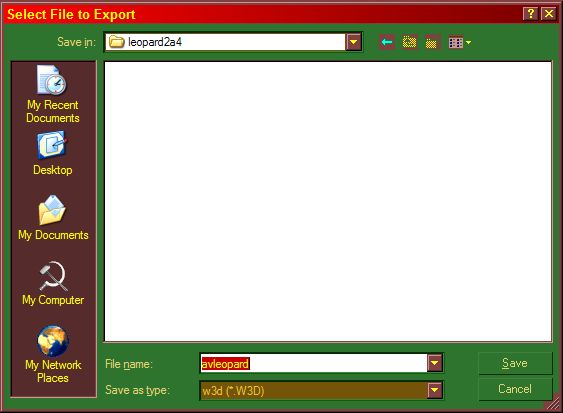
you've done that you've finished in gmax.
So save and close. Now there are 2 ways
of getting your exported models into the
game. Because I've copied the crusader my
model will simply replace the crusader,
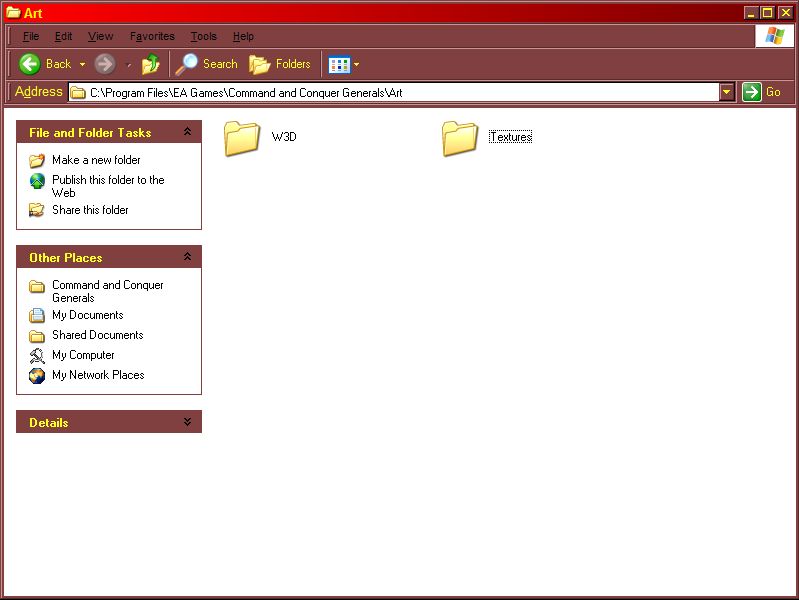
no INI editing needed. you can just make
an Art folder in your Generals install folder,
then 2 folders in that named Textures and
W3D. Put your W3D files in the W3D folder
and your textures in the Textures folder
(duh). Run the game and it'll work like
that, but it leaves you with lots of floating
files lying around in your generals folder.
(PS, please excuse my horrifyingly ugly
windows colour scheme. I thought it was
cool when I first put it on but have
grown to disslike it too but can't be bothered
to change it)
So
what I do is put all these files into one
.big file. This is good because it leaves
you with just 1 file for each unit you make.
This means you need a program that can read/write
.big files. I use FinalBig but you can use
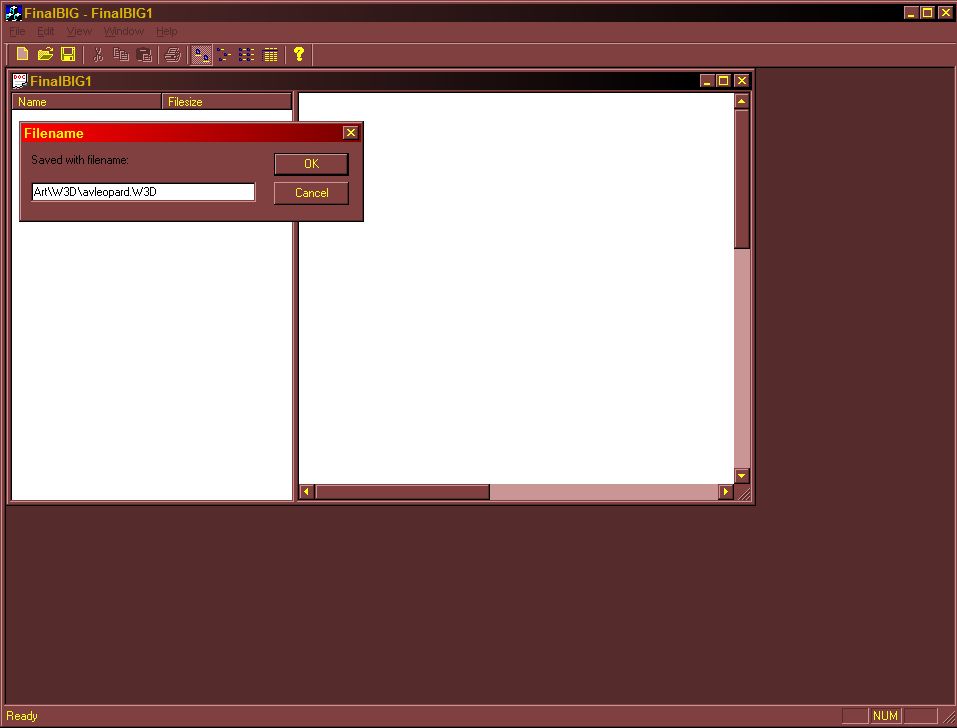
others like XCC Mixer. Add your W3D Files
under Art\W3D, as shown. Put your textures
in Art\Textures. Now save it with any name
(and the .big extention) into your
generals install folder.
And
that's it! If your tank appears too big
or too small in game you can go back to
it in gmax and scale it up or down, so it's
usually good to use the folder method while
you're testing it, then put it into a .big
when you're happy with it.
Remember
that different units/structures use different
bones. Take a look at some default Generals
units to see what bones they use.
Also
if you are still having any problems, feel
free to leave a message on my forum. I do
check it regularly and will help if I can,
that is if someone else doesn't help you
out before I get there! Have fun making
stuff. Let me know how you get on by posting
pictures of your tank on the forum, and
any feedback is always welcome!
END!
|